New in 2.4 Intruder photos, Finder locking and more →

Your Mac,
now face-secured.

Lock any app or file behind your face. A scanner drops out of your notch, checks it's you, and gets out of the way.

Free · Version 2.4.4 · macOS 14 or later · Apple silicon & Intel

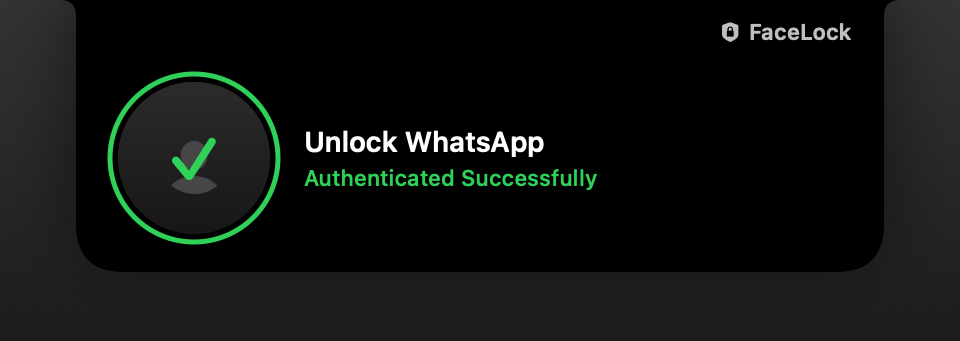
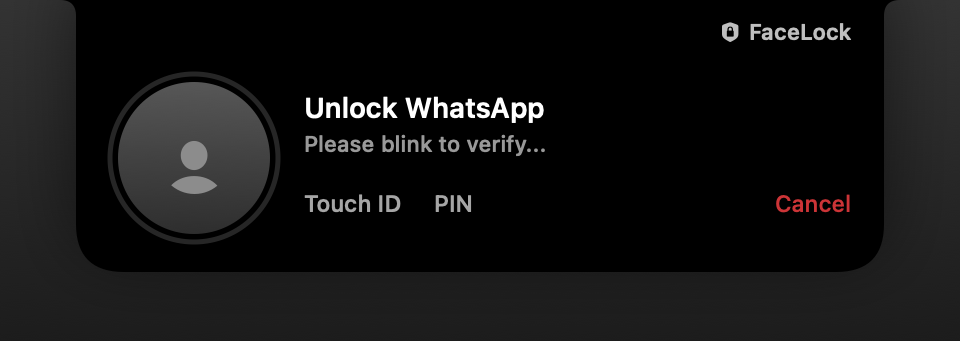
FaceLock scanning a face in the notch Green tick after a successful scan

How it works

Three seconds between
you and your apps.

  1. 1

    Open a protected app

    FaceLock hides it, shields every screen and freezes it before anything shows.

  2. 2

    Look and blink

    A scanner drops out of your notch. Your face is matched on your Mac, and a blink proves it's really you.

  3. 3

    Green tick, you're in

    The shield lifts and the app picks up exactly where it was. Touch ID and your PIN are always one click away.

FaceLock in 60 seconds

Features

Security with
more than one layer.

Keep the apps and files that matter behind the one thing only you have, without slowing yourself down.

Unlocking WhatsApp from the notch

Apps stay frozen until it's you

Open a protected app and it's stopped in its tracks: hidden, shielded and frozen. Scan in the notch and it resumes right where it was. Several at once? Their scans line up in order, so nothing is skipped or left frozen.
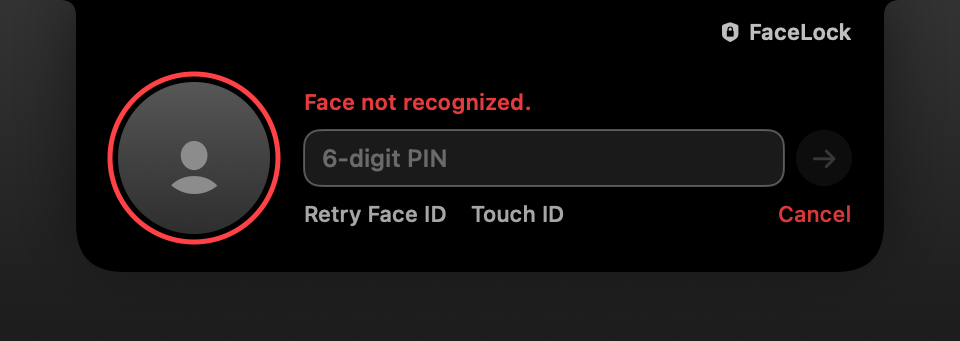
PIN entry after a failed scan

Fallbacks that just work

Bad light or a hoodie on? After a few misses the notch switches to your 6-digit PIN, with Touch ID and Retry Face ID right below.

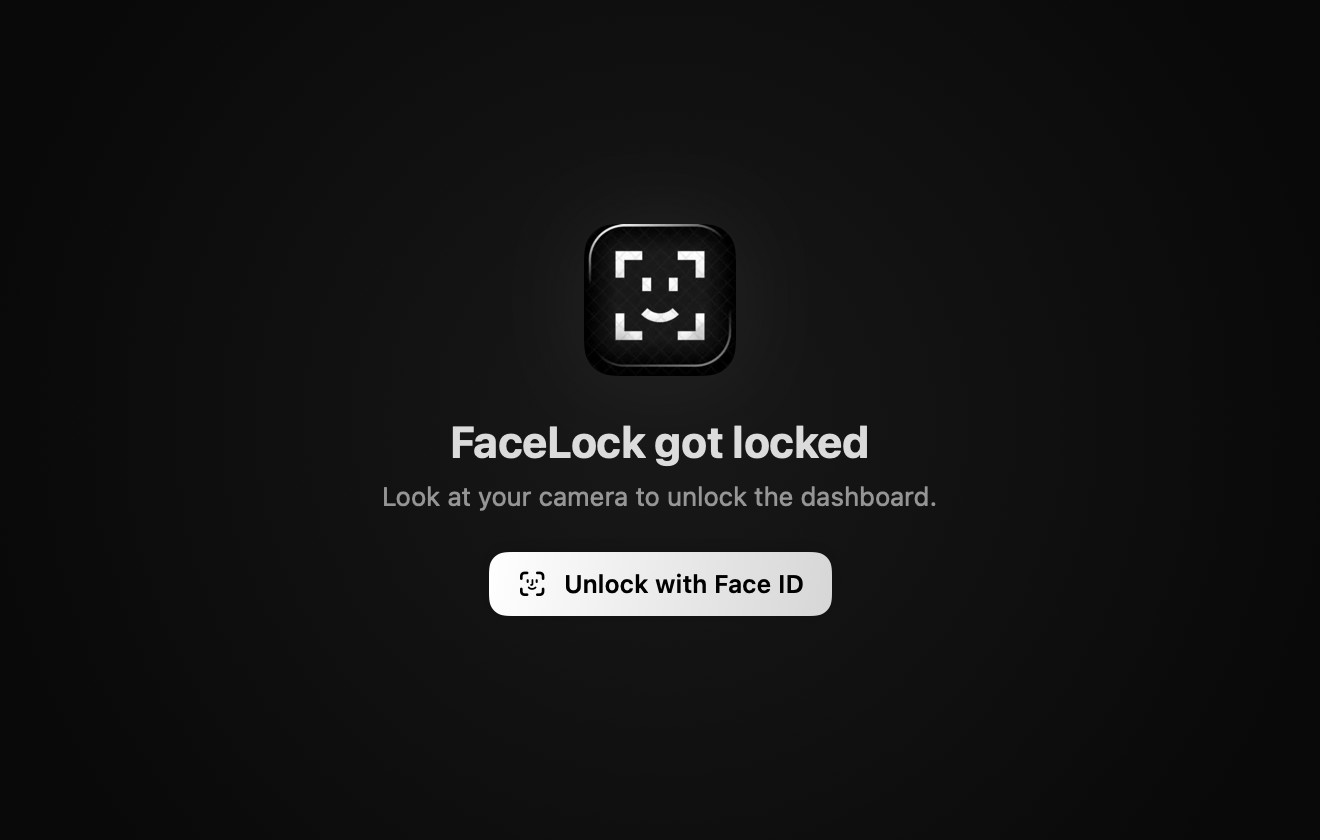
The locked FaceLock dashboard

Even FaceLock is behind your face

Opening the dashboard needs a scan, and so does quitting FaceLock, so nobody can switch it off to get around it. On quit it re-locks your files and says goodbye.

Encrypted files in the FaceLock dashboard

Files encrypted on disk

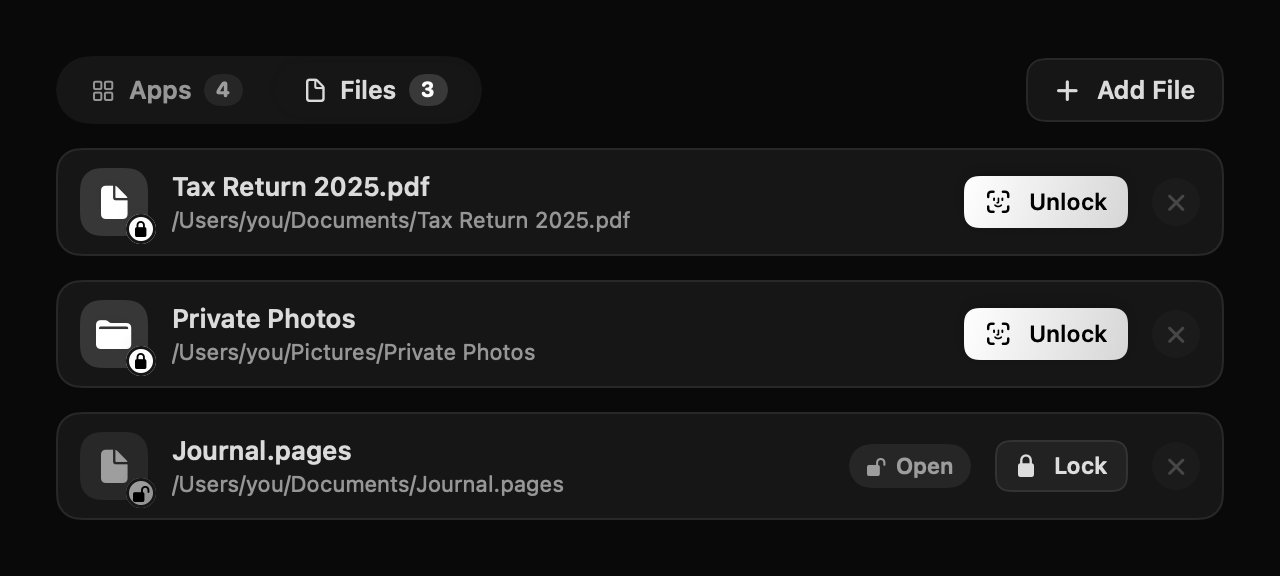
AES-GCM encryption for files and folders, in the background. Double-click a .facelock file, scan, and it opens. It locks again when you're done.

New FaceLock 2.4

Know who tried.
Lock things faster.

Four additions that make FaceLock smarter about intruders and quicker to use every day.

Intruder photos

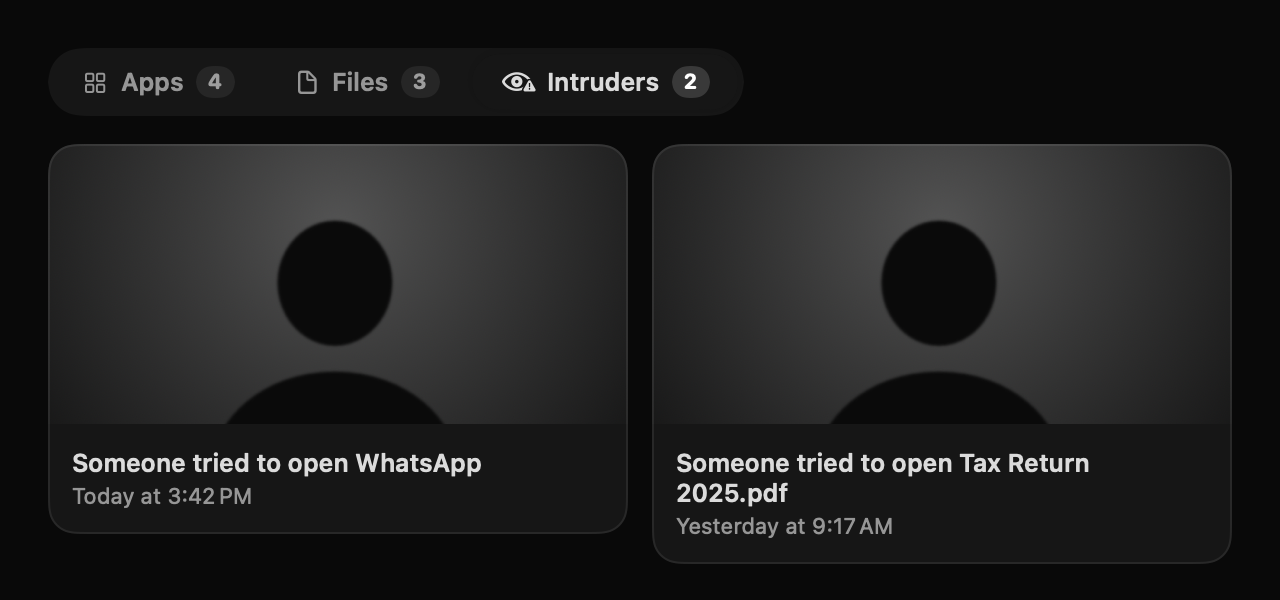
After three failed face scans, FaceLock quietly takes a photo of whoever is trying. The dashboard's Intruders tab shows the last four: "Someone tried to open WhatsApp, today at 3:42 PM."

  • Works for apps, files, the dashboard and quitting FaceLock
  • Stored privately on your Mac, never uploaded
  • Older photos are deleted automatically
The Intruders tab with two failed attempts

Per-app settings

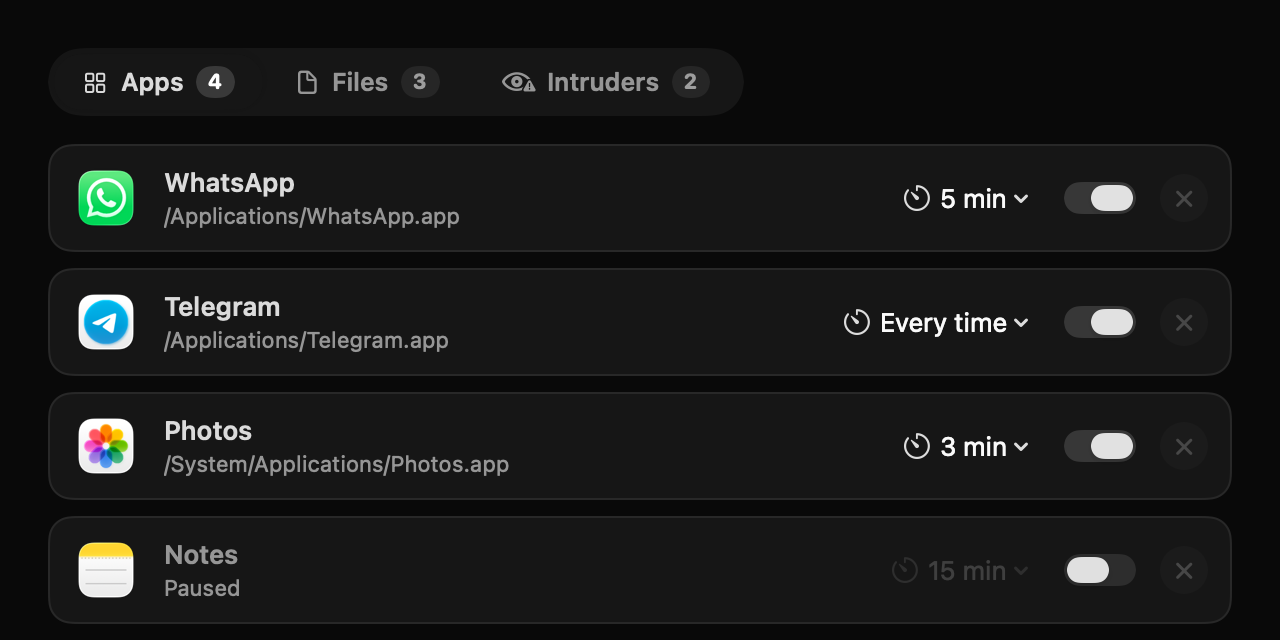
Give each app its own grace period. WhatsApp can wait 5 minutes, your bank asks every time. Pause protection for any app with a switch, without removing it.

  • Every time, 1, 5, 15 or 60 minutes, or the default
  • Strict Lock sets every app left on Default to “every time”
Protected apps with their own grace periods and switches
PDF report.pdf

Lock from Finder

Right-click any file or folder and choose Lock with FaceLock, or drag it onto the dashboard. A quick note in the notch confirms it.

Drop it on the notch

Drag files up to your MacBook's notch. It opens into a little shelf, and whatever you drop is locked right where it lives.

Updates, built in

FaceLock checks for new versions on its own and tells you from the menu bar and dashboard. No more hunting for a new download link.

First run

Setup that talks
you through it.

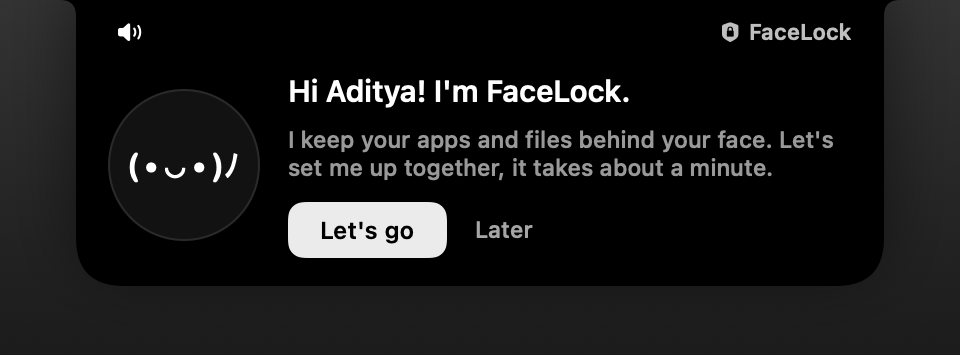
No setup window, no manual. FaceLock sets itself up in your notch, and you learn it by doing it, in about a minute.

FaceLock greeting a new user in the notch 01

A friendly guide

An animated face walks you through each step with a soft, pre-recorded voice. Mute it anytime.

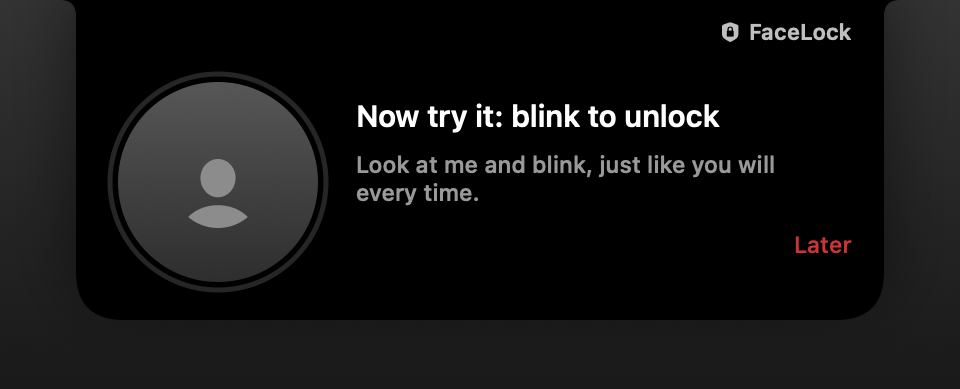
Practice unlock: blink to unlock 02

Scan, then try it

Look straight, left and right, then do a real practice unlock before anything is saved.

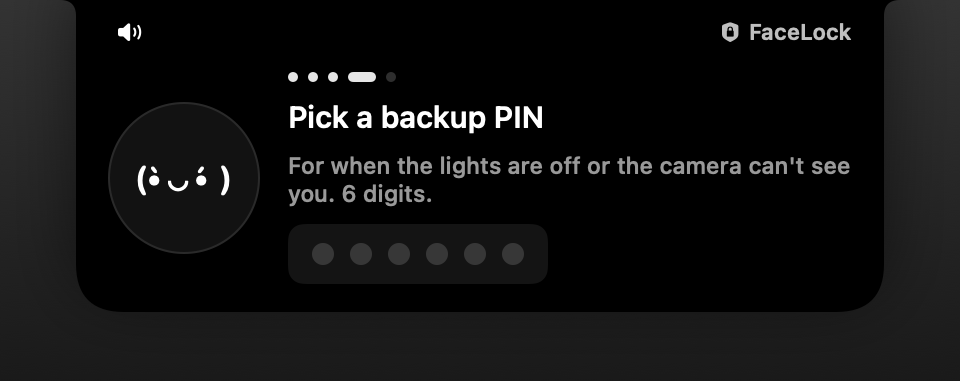
Choosing a backup PIN 03

A backup PIN

Pick a 6-digit PIN for when the camera can't see you, and confirm it so a typo can't lock you out.

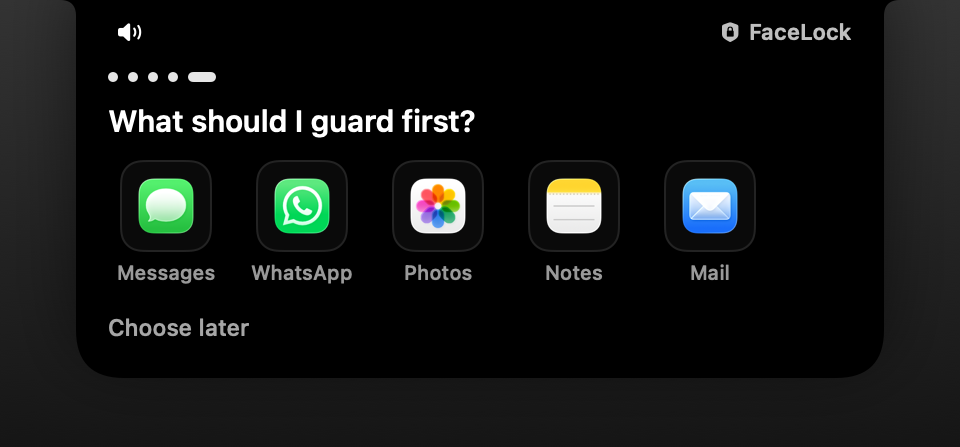
Choosing the first apps to protect 04

Guard your first apps

Tap Messages, WhatsApp, Photos, Notes or Mail right from the tour. Replay it from the dashboard anytime.

Under the hood

Private by default.
Careful by design.

On-device recognition

Apple's Vision framework and a MobileFaceNet model. Your face never leaves your Mac.

Keychain storage

Your face data, PIN and file key live in your macOS Keychain.

AES-GCM, 256-bit

Files are encrypted in authenticated chunks, so tampering is detected, not half-opened.

Recovery key

Save, copy or print a recovery key that can bring your files back if anything is lost.

Screen sleep re-lock

The moment your display sleeps, every unlock is forgotten.

Never left frozen

Every frozen app is tracked and resumed, even after a crash, without skipping the scan.

System apps too

Protect Photos, Messages, Notes and Mail as easily as anything you installed.

Lives in the menu bar

No Dock icon. Starts at login and greets you with a quick "Welcome back" scan.

Native and light

Built in Swift and SwiftUI. A small download that stays out of your way.

Getting started

Up and running
in three steps.

  1. 1

    Open FaceLock

    Unzip and move FaceLock.app to Applications. It isn't from the App Store, so right-click it and choose Open. On newer macOS, try opening it once, then click Open Anyway in System Settings › Privacy & Security. Prefer Terminal? After moving it to Applications, run xattr -dr com.apple.quarantine /Applications/FaceLock.app and open it normally.

  2. 2

    Follow the tour

    The tour appears in your notch and asks for camera access when it needs it. That's the only permission FaceLock uses.

  3. 3

    Always Allow Keychain

    The first time a new version launches, macOS asks for your Mac password so FaceLock can read its Keychain item. Click Always Allow.

FAQ

Questions, answered.

Is my face sent anywhere?

No. Face matching runs entirely on your Mac, and your face data is stored in your Keychain. Intruder photos stay in a private folder on your Mac too. The only thing FaceLock fetches online is a tiny file that says which version is the latest.

Is this as secure as Face ID?

No. FaceLock uses your Mac's regular camera, not a 3D sensor, and the blink check is basic. It's great at keeping snoopers out of your apps and files, but it isn't a replacement for FileVault or a strong Mac password.

Does it work on Macs without a notch?

Yes. On other Macs and external displays the scanner drops from the top centre of the screen instead. Dropping files on the notch needs a notch, but you can always drag them onto the dashboard or use Finder's right-click menu.

What if I lose my encrypted files' key?

Save your recovery key from the dashboard. It's the only way to decrypt your .facelock files if FaceLock's data is ever lost, so keep it somewhere safe.

How do I update?

FaceLock tells you when a new version is out. Download it, replace the app in Applications, and open it. Your face scan, PIN, apps and files carry over.

Something isn't working. How do I get help?

Email Aditya05yt@gmail.com and describe what happened. You can also choose Contact Support… from FaceLock's menu bar icon, or Settings › Contact support in the dashboard, which fills in your FaceLock and macOS versions for you.

Can it unlock my Mac's lock screen?

No. macOS doesn't let third-party apps work on the lock screen. Use Touch ID or Apple Watch unlock for that.

Ready to secure your Mac?

Free for personal use. macOS 14 or later, on Apple silicon and Intel.

Download FaceLock 2.4.4

After downloading, see Install for the first-launch steps. Need help? Aditya05yt@gmail.com